WordPress plugin
Recording widget and voice messages in WordPress – no code, in five minutes.
The plugin brings both building blocks to WordPress: the recording widget (visitors record something for you) and Listen to a message (visitors listen to your message). Both as a floating element on all pages, as a block in the editor or as a shortcode.
Install
- Download the plugin: speeeak.io/einbetten → “WordPress plugin” (ZIP).
- WordPress → Plugins → Add New → Upload Plugin → choose the ZIP → Install Now → Activate.
- The menu item Speeeak (microphone icon) appears in the left-hand menu.
You install an update the same way: upload the new ZIP, WordPress asks “Replace?” → Yes. Your settings are kept.
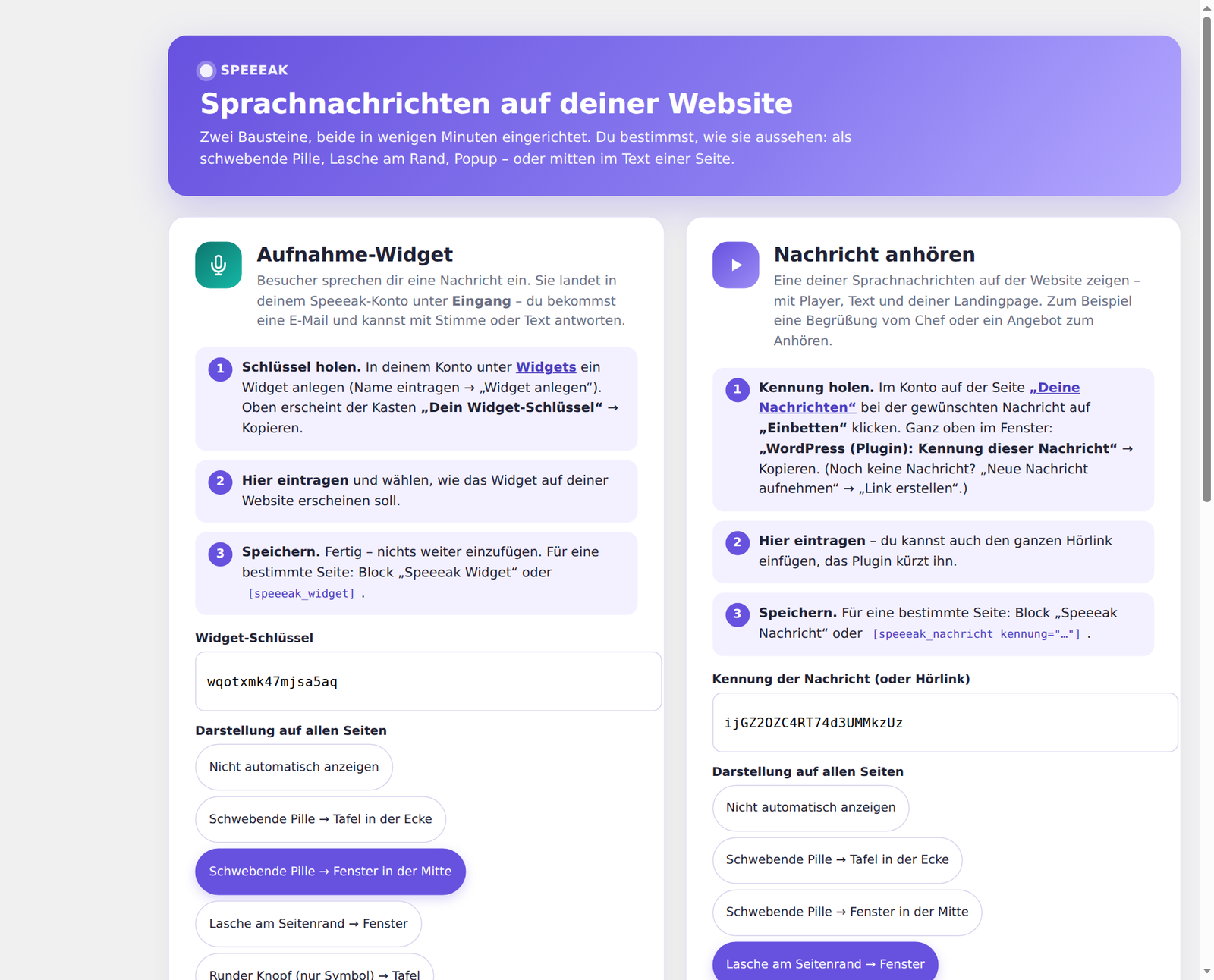
Set up the recording widget
- Get the key: Speeeak account → Widgets → create a widget → click Copy in the box “Your widget key” at the top.
- In WordPress under Speeeak, paste it into the field Widget key.
- Choose the display style on all pages: pill → panel, pill → window, tab, round button – or “Don't show automatically” if you only want the widget on certain pages via a block.
- Adjust text, position (left/right), colour and text colour.
- Enter your privacy policy (link) – the default is the privacy page of your WordPress installation, if there is one.
- Save settings. Done – open your website, the button is there.
💡 Tip: “Open widget page ↗” below the fields shows your widget at full size; the expandable preview is real – you can record a test message for yourself.
Set up Listen to a message
- Get the message ID: Speeeak account → Messages → Embed next to the message you want → “ID of this message” at the top → Copy. (You can also paste the whole listening link, the plugin shortens it.)
- In WordPress under Speeeak, paste it into the field Message ID.
- Choose display style, text, position and colours – tip: widget on the right, message on the left, then the buttons won't get in each other's way.
- Save settings.
What is shown on the listening page (name, heading, footer …) is set in your Speeeak account under the landing page.
Blocks in the editor
In the block editor you'll find “Speeeak Widget” and “Speeeak Message” (category Embeds). You can leave key or message ID empty – then the values from the settings apply. For each block you choose display style, text, position, colour or (inline) the width.
Shortcodes
For classic editors, widget areas or page builders:
[speeeak_widget]
[speeeak_widget art="popup" text="Say hello" farbe="#0f766e"]
[speeeak_nachricht kennung="MESSAGE-ID"]
[speeeak_nachricht kennung="MESSAGE-ID" art="lasche" position="links"]
| Attribute | Values | Default |
|---|---|---|
key / kennung |
widget key / message ID | from the settings |
art |
text, knopf, popup, lasche, rund |
text |
text |
label of the button | from the settings |
position |
rechts, links |
from the settings |
farbe, textfarbe |
hex colour, e.g. #6751df |
from the settings |
breite |
only with art="text", e.g. 640px or 100% |
640px / 720px |
Common stumbling blocks
- “This website is not allowed” → in your Speeeak account, enter your domain under “Allowed websites” for the widget (or leave the list empty). The settings page tells you the domain.
- “… is a widget key, not a message” → you put the key (starts with
w) into the message field. The message ID belongs there. - Nothing to see, but no note either → clear your caching plugin; check whether a cookie/consent plugin blocks third-party scripts (Speeeak loads from
speeeak.io). - Microphone doesn't work → the website must run over https; browsers only allow microphone access on secure pages.
More under Solving problems.