Record and share a message
The basic flow – from microphone to link. No account, in under a minute.
Step by step
- Open speeeak.io and tap the big microphone. Your browser asks once whether Speeeak may use the microphone – “Allow”.
- Speak. The recording runs and the counter shows the time (free up to 2 minutes, Plus up to 15, Pro up to 30, Business up to 60). Tap the microphone again to stop.
- Listen. In the preview you hear yourself. Not happy? “Record again”. Good? Continue.
- “Create link”. Only now is the recording uploaded. You get the listening link – copy it and send it.
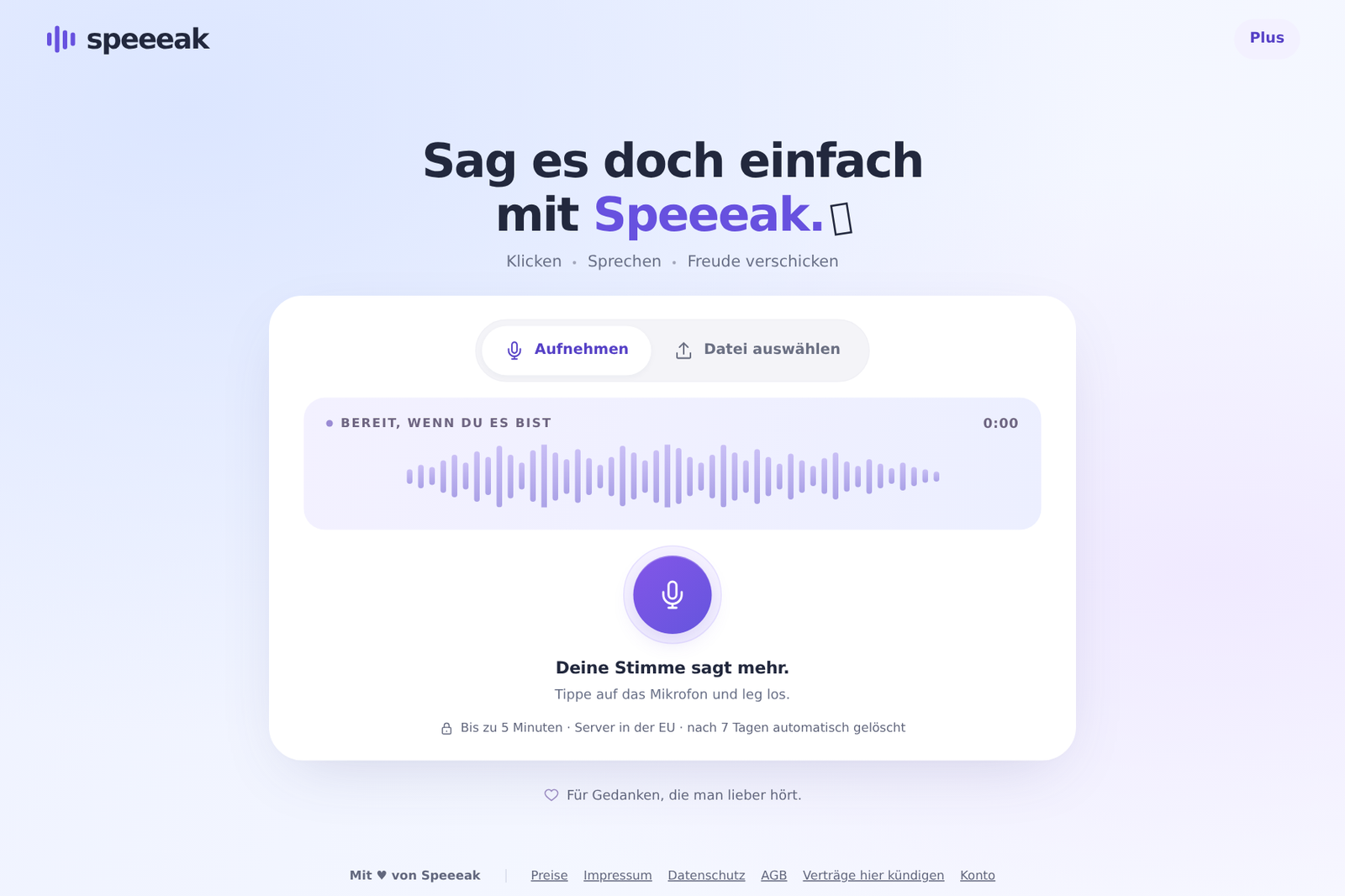
Already have a recording?
Instead of speaking you can upload a finished audio file: “Choose audio file” or simply drag the file onto the page. MP3, M4A, WAV, OGG, WebM – up to 3 MB (Plus: 40 MB, Pro: 60 MB, Business: 100 MB).
Sending the link
The link looks like this: https://speeeak.io/n/…. You can paste it anywhere – WhatsApp, Signal, e-mail, Slack, a ticket. Anyone who has the link can listen to the message, so only share it with the people you want to hear it.
Directly below the link you will find:
- Paste into my e-mail – puts a neat voice card with the link onto your clipboard. See Send by e-mail.
- Open e-mail – launches your mail program with subject and link.
- View recipient page – shows what the recipient sees.
- Save audio – downloads the recording as a file.
- Transcribe – writes down what you said. See Transcribe.
What the recipient sees
A calm page with a player, the duration and – if you allow it – the button “Reply with a voice message”. The recipient needs no account. The message stays available for 7 days (Plus and Pro: 90 days, Business: one year), then it is deleted automatically.
💡 Tip: With an account you find all your messages again under “Messages”, can send them by e-mail, connect them to landing pages and assign short links. See Create an account.