Send by e-mail
Three ways to send a voice message by e-mail – with a voice card that looks good in every mail program.
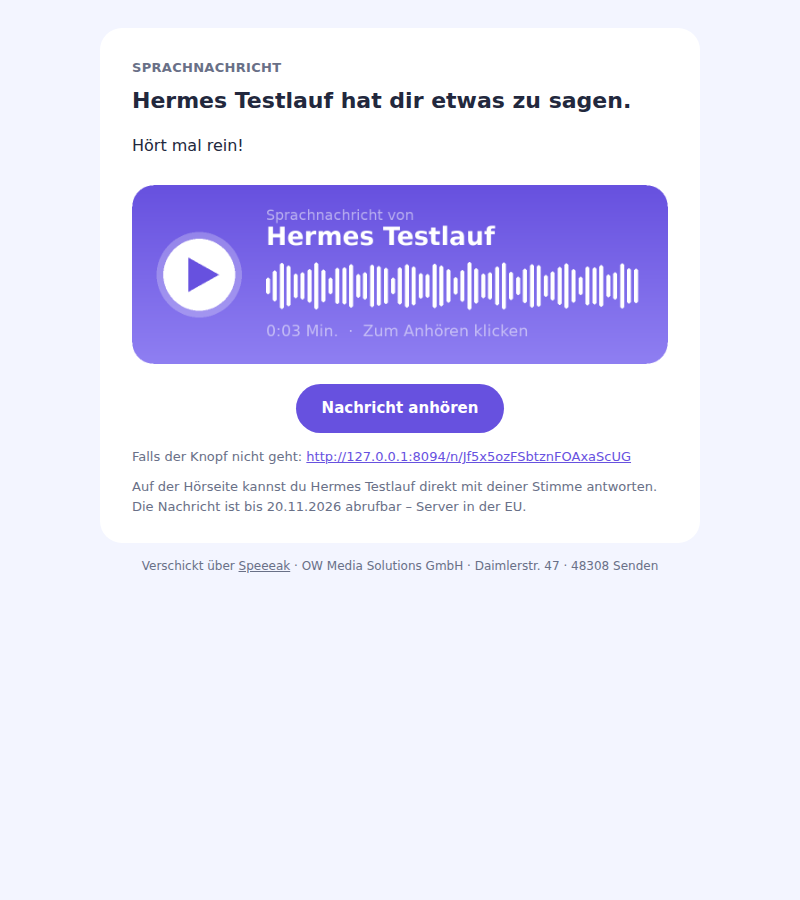
E-mail cannot play audio – but it can carry a nice envelope. For every message Speeeak creates a voice card: an image with play button, waveform, your name and the duration. One click opens the listening page.
Way 1: Send from within Speeeak – through your own mail account (Plus)
The easiest way – nothing to copy, nothing to paste. Requirement: you have set up your own mail account once (your mailbox or a service such as Brevo, Postmark, Amazon SES). Speeeak writes the e-mail; it is sent through your account, under your name and your address – never from a Speeeak address.
- Account → Messages → “By e-mail” next to the message.
- Enter the recipients (up to 10, separated by comma or line break), a subject and a few words.
- “Send e-mail”.
Replies come to you (your account address is set as the reply address). To prevent abuse: at most 50 e-mails per account and day.
💡 Tip: Without your own mail account, ways 2 and 3 are always open to you – there your mail program does the sending anyway.
Way 2: Paste into your own e-mail
For Gmail, Apple Mail, Outlook, Proton and all other programs that support formatted mail:
- Click “Paste into my e-mail” next to the message (in your account in the “By e-mail” window; without an account directly below the finished link).
- Click into your e-mail where you want it and press Cmd+V (Mac) or Ctrl+V (Windows).
- Voice card and link are in the mail. Done.
💡 Tip: If your program only accepts plain text (rare), the link is pasted as text automatically – something usable always arrives.
Way 3: Open e-mail
“Open e-mail” launches your mail program with a subject and a short text including the link. No image – but done in two seconds, even on your phone.
Reply by voice
On the listening page the recipient finds “Reply with a voice message”. If they record a reply, you receive it by e-mail with their voice card – and can reply again. This way a conversation happens by e-mail without anyone having to type.
What happens in which mail program
| Program | Voice card (image) | Note |
|---|---|---|
| Gmail | shown immediately | – |
| Apple Mail | shown immediately | with tracking protection enabled, possibly only after “Load images” |
| Outlook | after “Download pictures” | that is why the link is always also in the mail as text |
| Proton Mail | after “Load images” | same as Outlook |
In every case there is the button “Listen to message” below the image and the link as text.