Design a landing page
Your listening page in your design – colours, logo, photo, buttons and what is shown.
A landing page is the outfit of your listening page. Without a landing page, every message looks like Speeeak; with a landing page, it looks like you. You can create as many as you like and assign each message to a landing page – even afterwards.
Create
Account → Landing pages → “New landing page” (or “+ New” at the top). An internal name is enough to start with; everything else can be changed at any time. “Save & preview” shows the result with one of your messages.
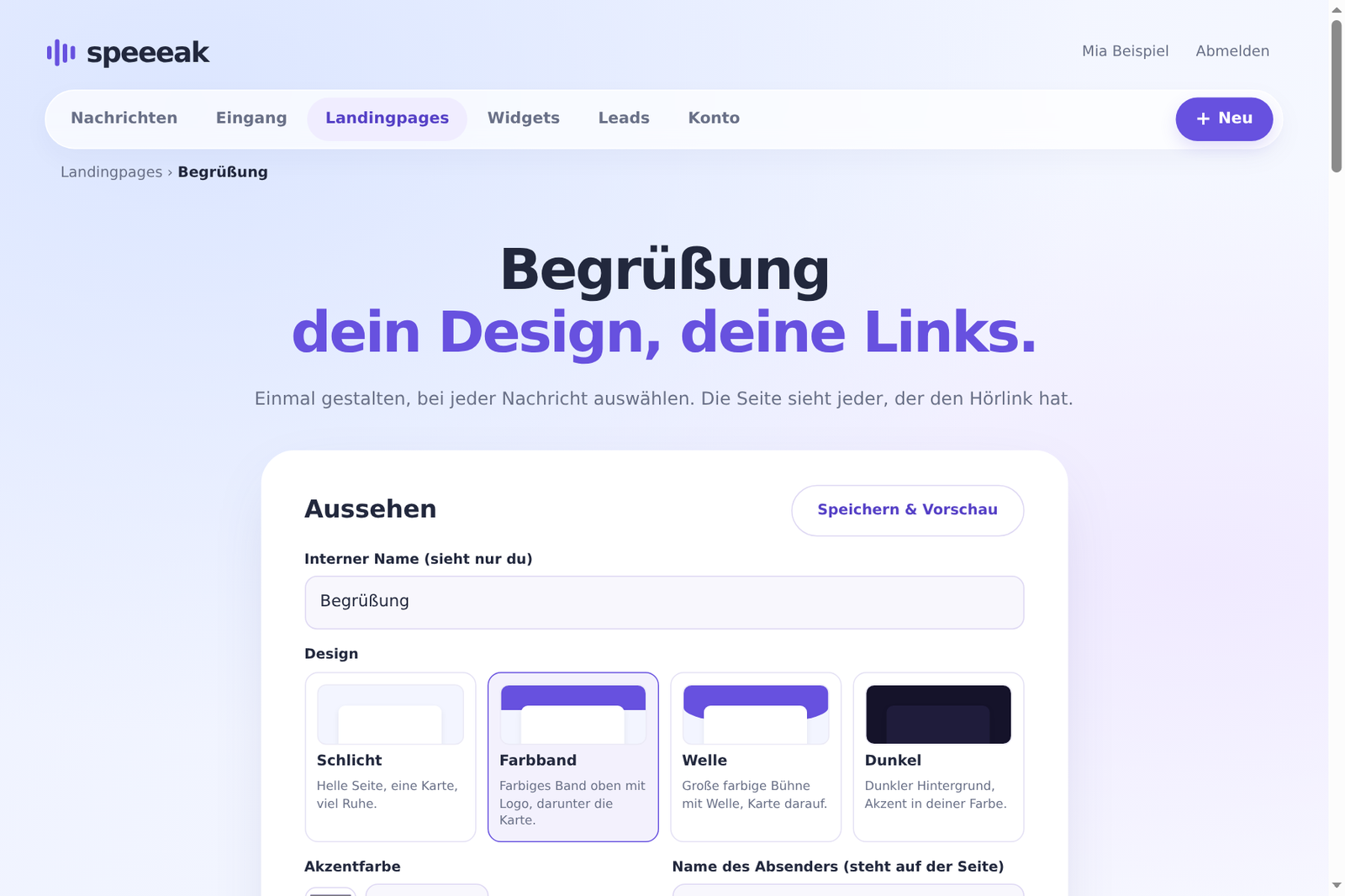
Design
| Setting | Meaning |
|---|---|
| Design | Plain (light page, one card) · Colour band (coloured band at the top with logo) · Wave (large coloured stage) · Dark |
| Colour | accent colour for band, buttons, player |
| Logo | at the top in the header (PNG/SVG/JPG) |
| Photo | round, next to the heading, e.g. your portrait |
| Sender name | “A voice message from …” and header without logo |
| Heading, text | above and below the player; the title of a message takes precedence |
| Buttons | up to three links below the player, e.g. “Book an appointment”, “See the offer” |
| Replies allowed | shows “Reply with a voice message” |
| Footer | your provider details (company, address, e-mail) |
| Privacy policy (link) | your privacy link in the footer; empty = Speeeak privacy policy |
What is shown on the page
Eight toggles, each individually – so you can make the page as plain or as complete as you like:
- Header with logo or sender name
- Heading (“A voice message for you” or message title)
- Subline “A voice message from … · duration”
- Photo or headphones icon
- Button “Save audio”
- “Available until …”
- “Servers in the EU”
- Privacy link
- “Made with ♥ by Speeeak” (can be switched off from Pro upwards)
For embedded messages (panel, popup) we recommend: header off, subline off – that keeps it compact.
Assign and title a message
Account → Messages → next to the message, the field “Landing page” → choose a page. From now on the listening link of this message uses the design. Next to it you can give the message a title (“Offer for the Berger family”) → OK. The title appears as the heading of the listening page and in the browser tab.